Building Lightweight Go Image
I am pushing an image to Dockerhub, and deploy it to Kubernetes.
Unfortunately my Raspberry Pi is not powerful. So, i am trying to make it as efficient as possible by using scratch image.
For example, making the image smaller is the best thing I can think of, like from 200 MB to 20 MB.
Honestly, it took some effort. But in the end, it was worth it. At least in my opinion.
Building image from scratch are kind of pain, because the image is literally empty, which is you cannot use shell command to troubleshooting. So, you need to make sure that your image is working properly.
Using ubuntu image (smaller one) is okay too, and you can troubleshoot it if something happen. But, if you want to make it efficient as much as possible, then using scratch image is a very good idea.
Application
I built this application to monitor my Raspberry Pi server. Then, I containerized the application to deploy it on my Kubernetes server. You can visit the application here.
Note: You can also build your own image from your application!
Dockerfile
Before start building image, we need to prepare the Dockerfile.
linux/amd64
Dockerfile_amd64
FROM golang:1.24 AS builder
RUN apt-get update
COPY go.mod go.sum ./
RUN go mod download
COPY . .
RUN CGO_ENABLED=0 GOOS=linux GOARCH=amd64 go build -o app .

FROM scratch
WORKDIR /root/
COPY --from=builder /go/app .
CMD ["./app", "--config.file=config.yaml"]
linux/arm64
Dockerfile_arm64
FROM arm64v8/golang:1.24 AS builder
RUN apt-get update && apt-get install -y gcc-aarch64-linux-gnu
COPY go.mod go.sum ./
RUN go mod download
COPY . .
RUN CGO_ENABLED=0 CC=aarch64-linux-gnu-gcc GOOS=linux GOARCH=arm64 go build -o app .

FROM shinsenter/scratch:latest
WORKDIR /root/
COPY --from=builder /go/app .
CMD ["./app", "--config.file=config.yaml"]
For example, my application need a config file to run binary file
./app --config.file=server.yaml
So, in the dockerfile, command to run is here.
CMD ["./app", "--config.file=config.yaml"]
If you are running on docker, you need to insert the config file to the container. I am using Kubernetes, so i am using configmap as to insert the config file to pod.
Deploying Image
There are automated way and manual way to deploy your image to Dockerhub.
Manual
Deploying manual to dockerhub is the easiest thing to do, and you will understand the flow.
Requirement
- Linux (Any RHEL/Ubuntu based)
- Docker (Building image)
- QEMU (Multiplatform, arm64)
- Dockerhub Token (login to dockerhub)
- Dockerhub Repository (store image)
linux/amd64
You can start build amd64 image and push to Dockerhub repository using file Dockerfile_amd64
docker build --file Dockerfile_amd64 --platform linux/amd64 -t dockerhub_username/application_name:amd64 .
docker push dockerhub_username/application_name:amd64
linux/arm64
You need to install QEMU to build multiplatform image.
sudo apt update
sudo apt-get install qemu-user-static
After that, you can start build arm64 image and push to Dockerhub repository using file Dockerfile_arm64
docker build --file Dockerfile_arm64 --platform linux/arm64/v8 -t dockerhub_username/application_name:arm64 .
docker push dockerhub_username/application_name:arm64
Automated
I am using Github action to deploy the image to Dockerfile, and the code is stored on github.
Requirement
- Github Repository (stored the code)
- Github Action (deploy image)
- Dockerhub Repository (store image)
Github Action
First, you need to build Github Action file to deploy the image.
name: "Deploying image"

on:
  push:

jobs:
  build:
    runs-on: ubuntu-latest
    steps:
    - uses: actions/checkout@v3
    - name: Login to Docker Hub
      uses: docker/login-action@v3
      with:
        username: ${{ secrets.DOCKER_USER }}
        password: ${{ secrets.DOCKER_TOKEN }}
    - name: Set up QEMU
      uses: docker/setup-qemu-action@v3
    - name: Build the Docker image
      env:
        DOCKER_USER: ${{ secrets.DOCKER_USER }}
        REPO_NAME: ${{ github.event.repository.name }}
      run: |
        docker build --file Dockerfile_arm64 --platform linux/arm64/v8 -t $DOCKER_USER/$REPO_NAME:arm64 .
        docker push $DOCKER_USER/$REPO_NAME:arm64
        docker build --file Dockerfile_amd64 --platform linux/amd64 -t $DOCKER_USER/$REPO_NAME:amd64 .
        docker push $DOCKER_USER/$REPO_NAME:amd64
Github Repository
There are 3 environment variable inside github action which i used.
- DOCKER_USER = Dockerhub username
- DOCKER_TOKEN = Dockerhub token that you generate manually, also you need to choose scope Read and Write
- REPO_NAME = Github Repository name
Next, you need to store your secret such as DOCKER_USER and DOCKER_TOKEN inside github repository.
After that, push your code to Github Repository, and Github Action will automatically run.
Github Action
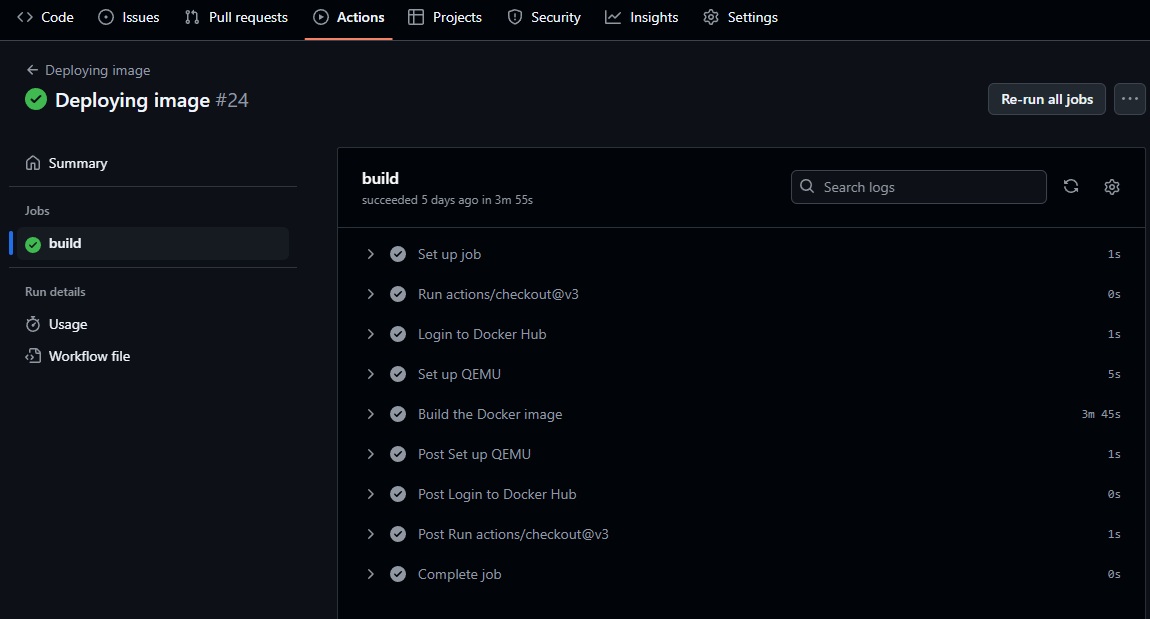
It shows that the run was successful. Now, you can look at DockerHub.
Dockerhub
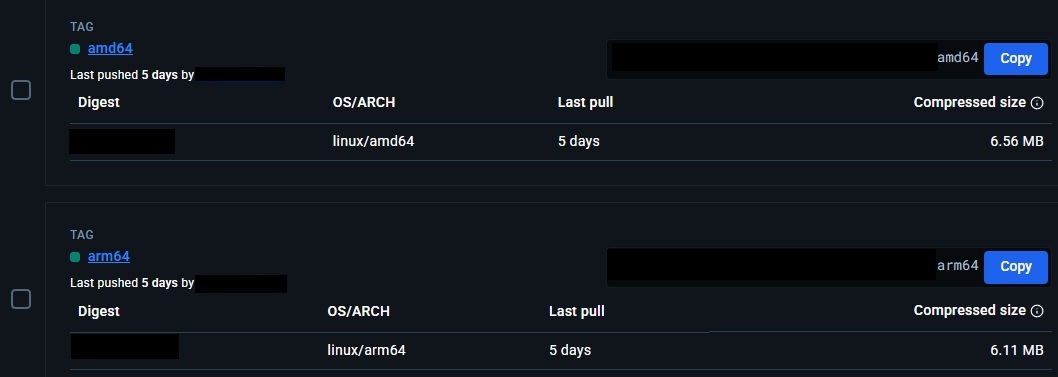
It only took 6 MB, which is very lightweight!